
Critical Windows Core Processes

Blog Overview
In today’s digital landscape, security analysts play a vital role in safeguarding systems against malicious threats. One of the most effective strategies for identifying potential security risks is monitoring critical Windows core processes. This blog will delve into the essential processes that every analyst should be aware of, focusing on how they can be leveraged to detect suspicious activity. I collected this info from my learning on TryHackMe and created my own notes, so I would like to share it with you.
We will explore key Windows processes such as svchost.exe, lsass.exe, and explorer.exe, providing insights into their functions and the significance of monitoring them.
System Process
The first Windows process on the list is the System process, which is assigned a unique identifier (PID) of 4. Unlike other processes, the PID for the System process is always 4. But what exactly does this process do?
According to Windows Internals 6th Edition, the System process (PID 4) serves as a host for a specific type of thread that operates solely in kernel mode — known as a kernel-mode system thread. These threads possess all the attributes and contexts of regular user-mode threads, including hardware context and priority. However, they are distinct in that they run only in kernel mode, executing code stored in system space, such as within Ntoskrnl.exe or other loaded device drivers. Additionally, system threads do not have a user process address space, necessitating that any dynamic storage be allocated from operating system memory heaps, such as the paged or nonpaged pool.
To understand the difference between user mode and kernel mode, you can visit this link. In summary, kernel mode encompasses the core processes of the system, while user mode refers to the application side.
Normal Behavior of the System Process
To explore the normal behavior of the System process, we can use Process Explorer to examine its properties.
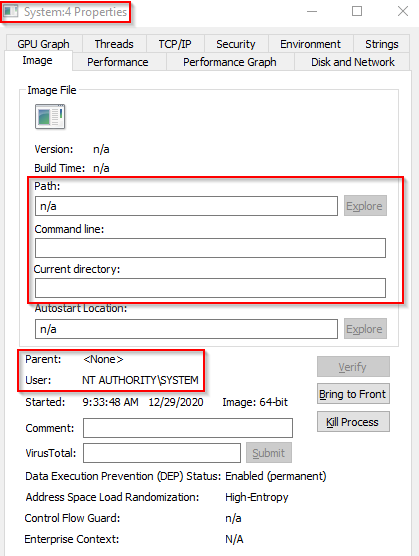
Here are some key attributes of the System process:
Image Path: N/A
Parent Process: None
Number of Instances: One
User Account: Local System
Start Time: At boot time
When viewed in Process Hacker, the information presents some slight differences:
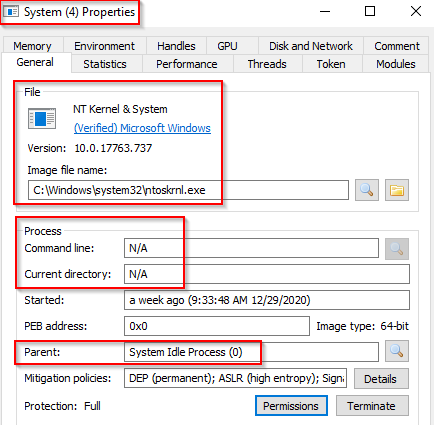
Image Path: C:\Windows\system32\ntoskrnl.exe (NT OS Kernel)
Parent Process: System Idle Process (0)
Process Hacker also verifies that this process is legitimate and confirms it is a verified Microsoft Windows component.
Unusual Behavior of the System Process
As a security analyst, it’s crucial to recognize the signs of unusual behavior concerning the System process. Indicators of potential issues include:
An unexpected parent process (other than System Idle Process (0))
Multiple instances of the System process (there should only be one instance)
An altered PID (the PID will always be 4)
Not running in Session 0
smss.exe (Session Manager Subsystem)
The smss.exe process, also known as the Windows Session Manager, is responsible for creating new sessions and is the first user-mode process started by the kernel.
This process initiates both kernel and user modes of the Windows subsystem, which includes:
win32k.sys (kernel mode)
winsrv.dll (user mode)
csrss.exe (user mode)
smss.exe starts csrss.exe and wininit.exe in Session 0 (for the OS) and csrss.exe and winlogon.exe in Session 1 (for the user). It creates child instances for new sessions by copying itself and terminating.
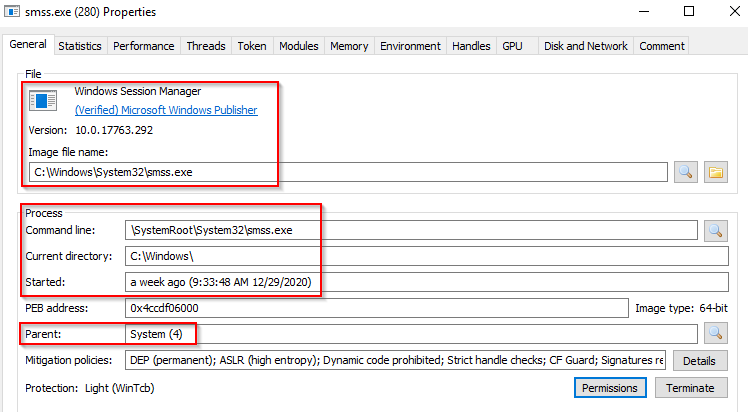
Normal Behavior:
Image Path: %SystemRoot%\System32\smss.exe
Parent Process: System
Instances: One master instance and one child per session
User Account: Local System
Start Time: Seconds after boot
Unusual Behavior:
Different parent process than System (4)
Image path not from C:\Windows\System32
More than one running process (children should exit)
Running user not SYSTEM
Unexpected registry entries for the subsystem
csrss.exe (Client Server Runtime Process)
csrss.exe is the user-mode component of the Windows subsystem, essential for system operation. Its termination leads to system failure. This process manages the Win32 console window, along with creating and deleting process threads. It loads several modules, including csrsrv.dll, basesrv.dll, and winsrv.dll. Additionally, it makes the Windows API accessible to other processes, maps drive letters, and handles the Windows shutdown procedure. For more details, refer to the Wikipedia article.
Note: csrss.exe and winlogon.exe are initiated by smss.exe at startup for Session 1.
Normal Behavior
Session 0 (PID 392)
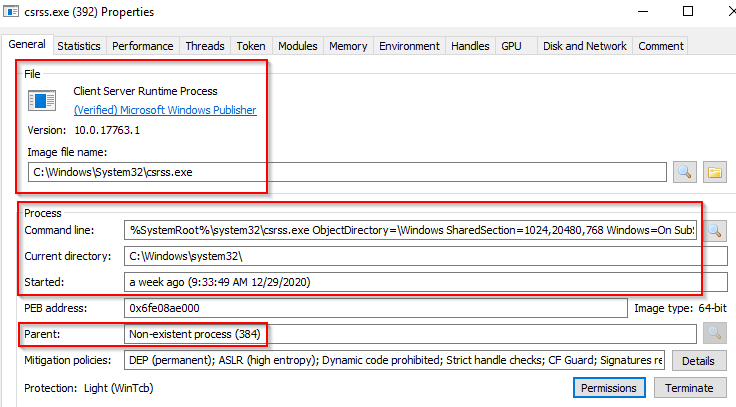
Session 1 (PID 512)
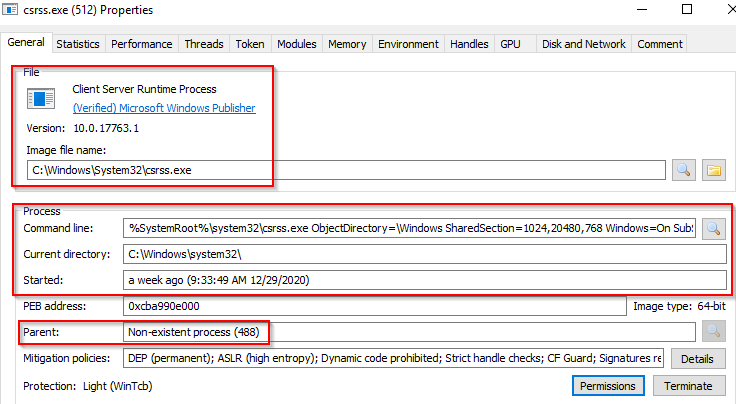
The parent process for both instances is smss.exe, which self-terminates after spawning them.
Image Path: %SystemRoot%\System32\csrss.exe
Parent Process: Created by an instance of smss.exe
Number of Instances: Two or more
User Account: Local System
Start Time: Within seconds of boot time for the first two instances (Sessions 0 and 1); additional instances start as new sessions are created.
Unusual Behavior
A valid parent process (smss.exe creates this process and then terminates).
An image file path different from C:\Windows\System32.
Subtle misspellings that conceal rogue processes masquerading as csrss.exe.
The user account is not the SYSTEM user.
wininit.exe (Windows Initialization Process)
The wininit.exe process is responsible for launching services.exe (Service Control Manager), lsass.exe (Local Security Authority), and lsaiso.exe within Session 0. It is a critical background process that operates alongside its child processes.

Note: The lsaiso.exe process is associated with Credential Guard and KeyGuard and will only appear if Credential Guard is enabled.
Normal Behavior
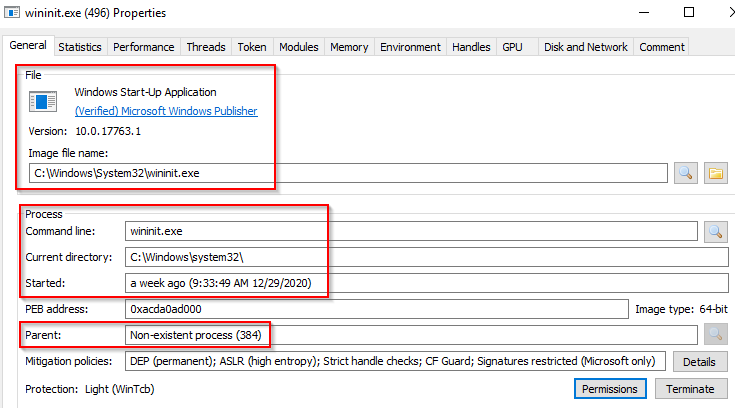
Image Path: %SystemRoot%\System32\wininit.exe
Parent Process: Created by an instance of smss.exe
Number of Instances: One
User Account: Local System
Start Time: Within seconds of boot time
Unusual Behavior
An actual parent process (smss.exe calls this process and then terminates).
An image file path different from C:\Windows\System32.
Subtle misspellings that could disguise rogue processes.
Multiple running instances.
Not operating as SYSTEM.
services.exe (Service Control Manager)
The Service Control Manager (SCM), known as services.exe, manages system services by loading, interacting with, and controlling their operation. It maintains a database that can be accessed with the Windows utility sc.exe.
Service information is stored in the registry at HKLM\System\CurrentControlSet\Services. This process also loads auto-start device drivers and sets the Last Known Good Configuration value during user login.
Key processes spawned by services.exe include svchost.exe, spoolsv.exe, msmpeng.exe, and dllhost.exe.

Normal Behavior
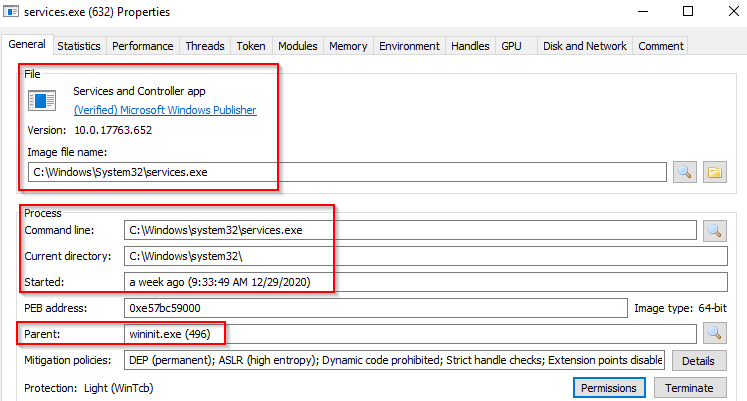
Image Path: %SystemRoot%\System32\services.exe
Parent Process: wininit.exe
Number of Instances: One
User Account: Local System
Start Time: Within seconds of boot time
Unusual Behavior
A parent process other than wininit.exe.
An image file path different from C:\Windows\System32.
Subtle misspellings that could disguise rogue processes.
Multiple running instances.
Not operating as SYSTEM.
svchost.exe (Service Host)
The Service Host (svchost.exe) is crucial for managing and hosting Windows services, executing them as DLLs. The DLL paths are stored in the registry under HKLM\SYSTEM\CurrentControlSet\Services\SERVICE NAME\Parameters.

To view the associated DLL for a specific svchost.exe instance (e.g., PID 748), use Process Hacker and check the Service DLL in the properties.
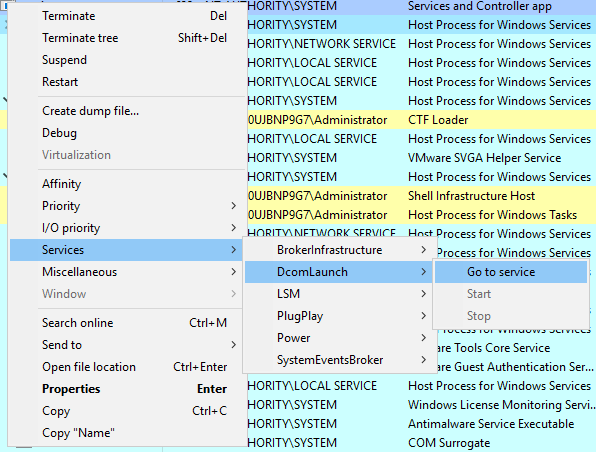
Due to its significance in the Windows operating system, monitoring svchost.exe is essential. Malicious actors may create malware that disguises itself as svchost.exe, using slight misspellings (e.g., scvhost.exe) to evade detection. This makes vigilant monitoring critical for identifying potential threats.
Normal Behavior
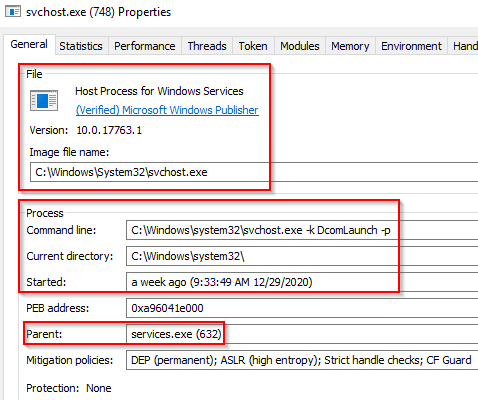
Image Path: %SystemRoot%\System32\svchost.exe
Parent Process: services.exe
Number of Instances: Many
User Account: Varies (SYSTEM, Network Service, Local Service), with some instances running as the logged-in user in Windows 10.
Start Time: Generally within seconds of boot; additional instances may start later.
Unusual Behavior
A parent process other than services.exe.
An image file path different from C:\Windows\System32.
Subtle misspellings that could conceal rogue processes.
The absence of the -k parameter in the binary path.
lsass.exe (Local Security Authority Subsystem Service)
The Local Security Authority Subsystem Service (lsass.exe) is a vital Windows process responsible for enforcing the system’s security policy. It plays a crucial role in user authentication, password management, and generating access tokens, which are essential for system security.
Key Functions of lsass.exe:
User Verification: Confirms the identity of users logging onto the system.
Password Changes: Manages and processes password change requests.
Access Token Creation: Generates security tokens for various accounts, including those in the Security Account Manager (SAM), Active Directory (AD), and NETLOGON.
Logging: Writes security events to the Windows Security Log.
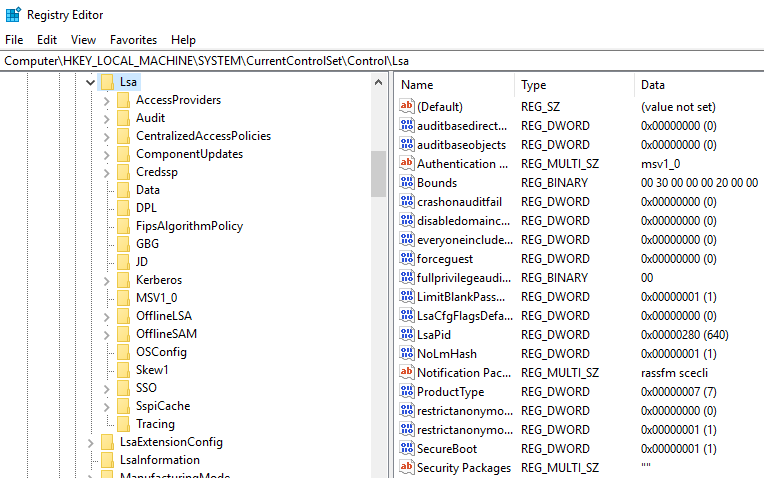
The authentication packages utilized by lsass.exe are specified in the registry under HKLM\System\CurrentControlSet\Control\Lsa.
Due to its critical functions, lsass.exe is often targeted by adversaries. Tools like mimikatz are commonly used to dump credentials from this process. Malicious actors may also create malware that mimics lsass.exe to evade detection, often using similar or slightly misspelled names.
For further reading on how lsass.exe is exploited and Microsoft’s countermeasures, check this article.
Normal Behavior
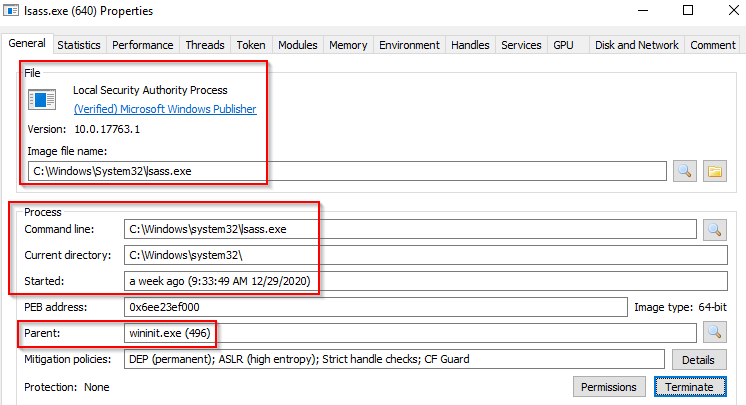
Image Path: %SystemRoot%\System32\lsass.exe
Parent Process: wininit.exe
Number of Instances: One
User Account: Local System
Start Time: Typically within seconds of boot time
Unusual Behavior
A parent process other than wininit.exe.
An image file path different from C:\Windows\System32.
Subtle misspellings that could disguise rogue processes.
Multiple running instances of lsass.exe.
Not running under the SYSTEM account.
Monitoring Importance
Given its central role in system security, monitoring lsass.exe is crucial. Any deviations from its normal behavior can signal potential security breaches or unauthorized access attempts. Keeping an eye on this process can help maintain the integrity of the system’s security posture.
winlogon.exe (Windows Logon)
The Windows Logon (winlogon.exe) process plays a crucial role in managing user logon and security functions in the Windows operating system. It is responsible for handling the Secure Attention Sequence (SAS), which is triggered by the ALT+CTRL+DELETE key combination. This sequence is a secure way for users to enter their credentials (username and password) to log into the system.
Key Functions of winlogon.exe:
User Authentication: Manages the login process and user credentials.
Profile Loading: Loads the user’s profile settings, including the NTUSER.DAT file, into HKCU (HKEY_CURRENT_USER).
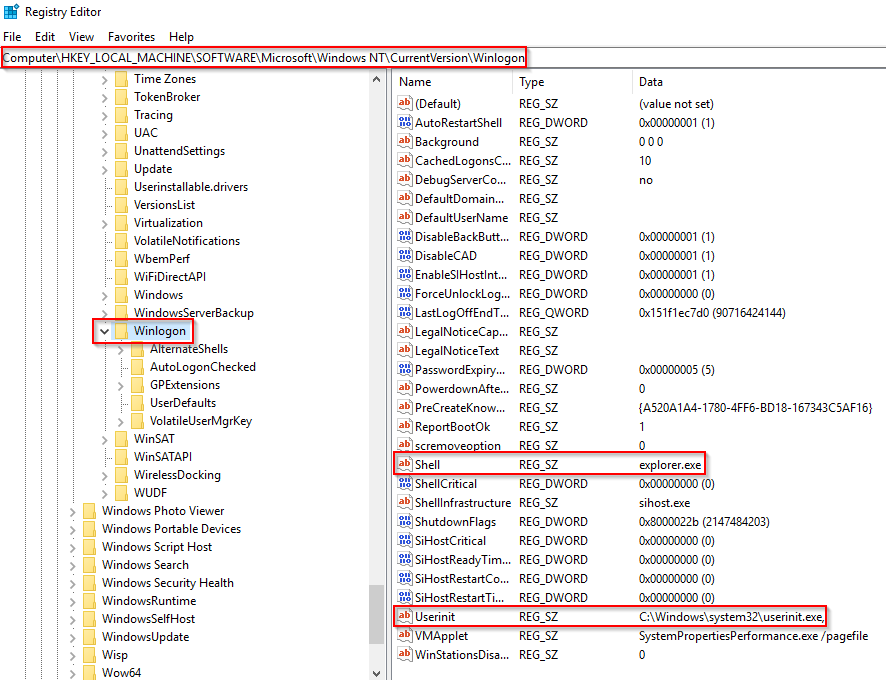
Session Management: Responsible for creating user sessions and loading the user shell through userinit.exe.
Screen Locking: Handles locking the screen and running the user’s screensaver.
For more detailed information, you can read about this process here or on its Wikipedia page.
Process Hierarchy:
As seen in the process tree, smss.exe initiates winlogon.exe and a copy of csrss.exe within Session 1.

Normal Behavior
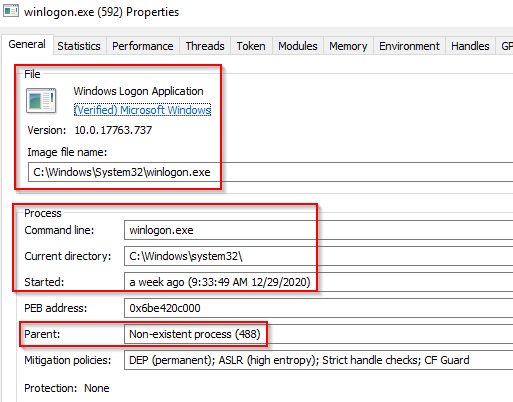
Image Path: %SystemRoot%\System32\winlogon.exe
Parent Process: Typically created by an instance of smss.exe that exits, which makes it challenging for analysis tools to identify the parent.
Number of Instances: One or more, depending on user sessions.
User Account: Local System
Start Time: The first instance starts within seconds of boot time. Additional instances occur for new sessions (e.g., Remote Desktop or Fast User Switching).
Unusual Behavior
An identifiable parent process other than smss.exe (which is responsible for creating it).
An image file path different from C:\Windows\System32.
Subtle misspellings that could disguise rogue processes (e.g., winnlogon.exe).
Not running under the SYSTEM account.
Shell values in the registry that differ from explorer.exe.
explorer.exe (Windows Explorer)
The Windows Explorer (explorer.exe) process is a fundamental component of the Windows operating system, providing users with a graphical interface to access files, folders, and various system features. It is responsible for critical functionalities like the Start Menu and Taskbar, making it an essential part of the user experience.

Key Functions of explorer.exe:
File Management: Allows users to navigate, manage, and manipulate files and folders on their system.
Taskbar and Start Menu: Provides access to applications and system settings through the Start Menu and Taskbar.
Shell Interface: Acts as the shell for the Windows operating system, providing the user interface for interacting with the system.
The Winlogon process starts userinit.exe, which subsequently launches explorer.exe based on the configuration found in HKLM\Software\Microsoft\Windows NT\CurrentVersion\Winlogon\Shell. After starting explorer.exe, userinit.exe exits, which means that the parent process is typically non-existent in process analysis.
Normal Behavior
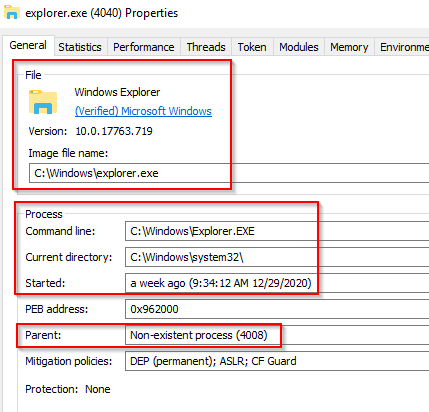
Image Path: %SystemRoot%\explorer.exe
Parent Process: Created by userinit.exe, which exits after spawning it.
Number of Instances: One or more instances per interactively logged-in user.
User Account: The logged-in user(s) will run this process.
Start Time: The first instance begins when the first interactive user logon session starts.
Unusual Behavior
An identifiable parent process other than userinit.exe (which is responsible for starting it).
An image file path that deviates from C:\Windows (e.g., C:\Windows\System32\explorer.exe).
Running under an unknown user account, which can indicate potential impersonation or malicious activity.
Subtle misspellings designed to conceal rogue processes (e.g., explorrer.exe).
Outbound TCP/IP connections, which may suggest that the process is being used for unauthorized communications or data exfiltration.
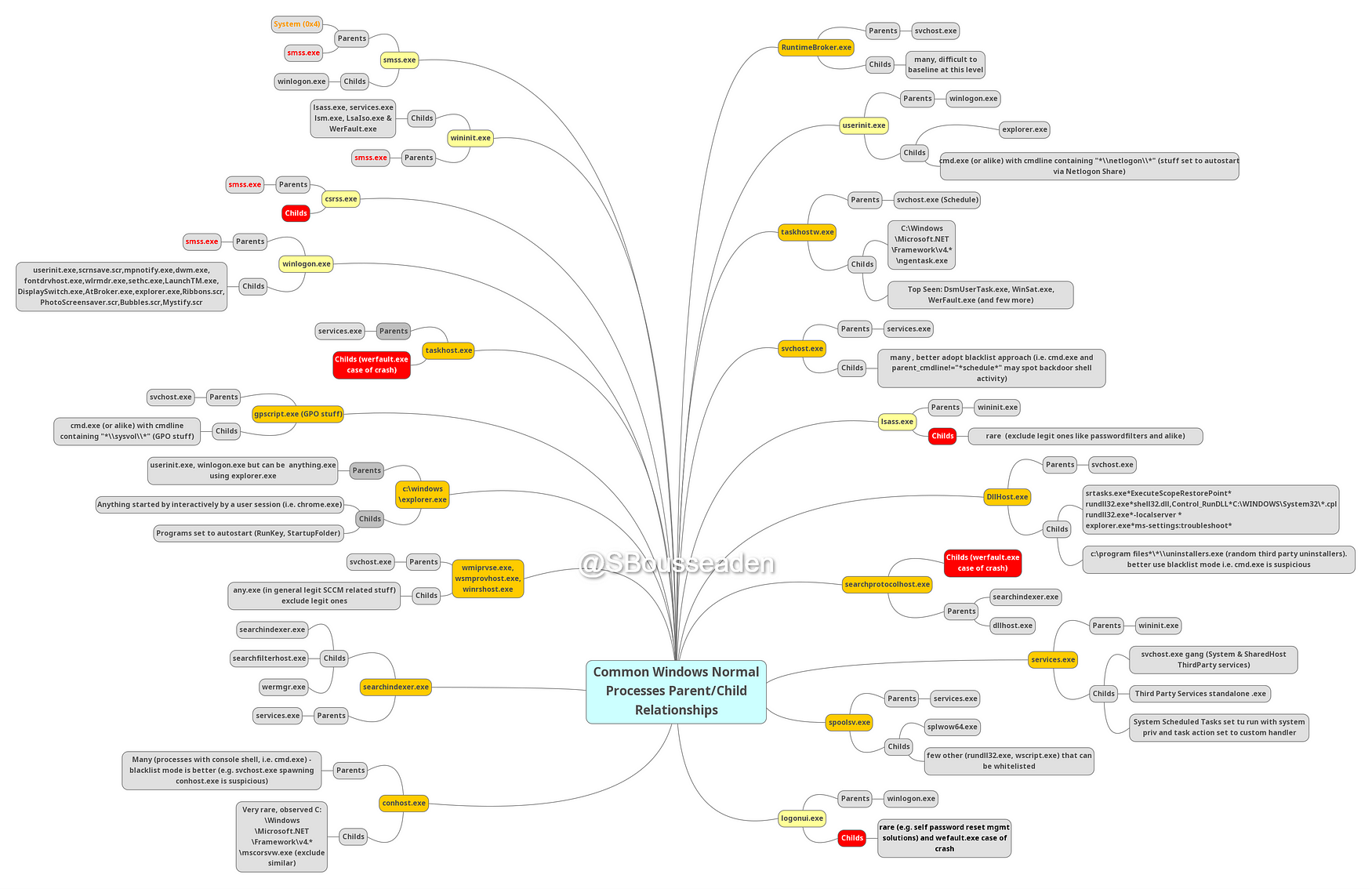
Windows Processes Parent/Child Relationships
Monitoring Windows processes is crucial for maintaining system security and stability. It’s essential to track not only the processes themselves but also their parent-child relationships. This monitoring helps identify suspicious activity, such as malicious processes masquerading as legitimate ones. Understanding the hierarchy of processes can reveal abnormal behaviors and potential security threats, enabling timely detection and response to unauthorized actions. By keeping a close watch on these relationships, administrators can better protect their systems from malware and other malicious activities.
Read More
https://0xcybery.github.io/blog/Core-Processes-In-Windows-System
https://docs.microsoft.com/en-us/sysinternals/resources/windows-internals
Conclusion
Monitoring Windows processes is essential for maintaining system security. By paying close attention to these processes and their parent-child relationships, you can identify suspicious activities and potential threats. I hope these notes serve as a valuable resource in your monitoring efforts.